
Journal Mode
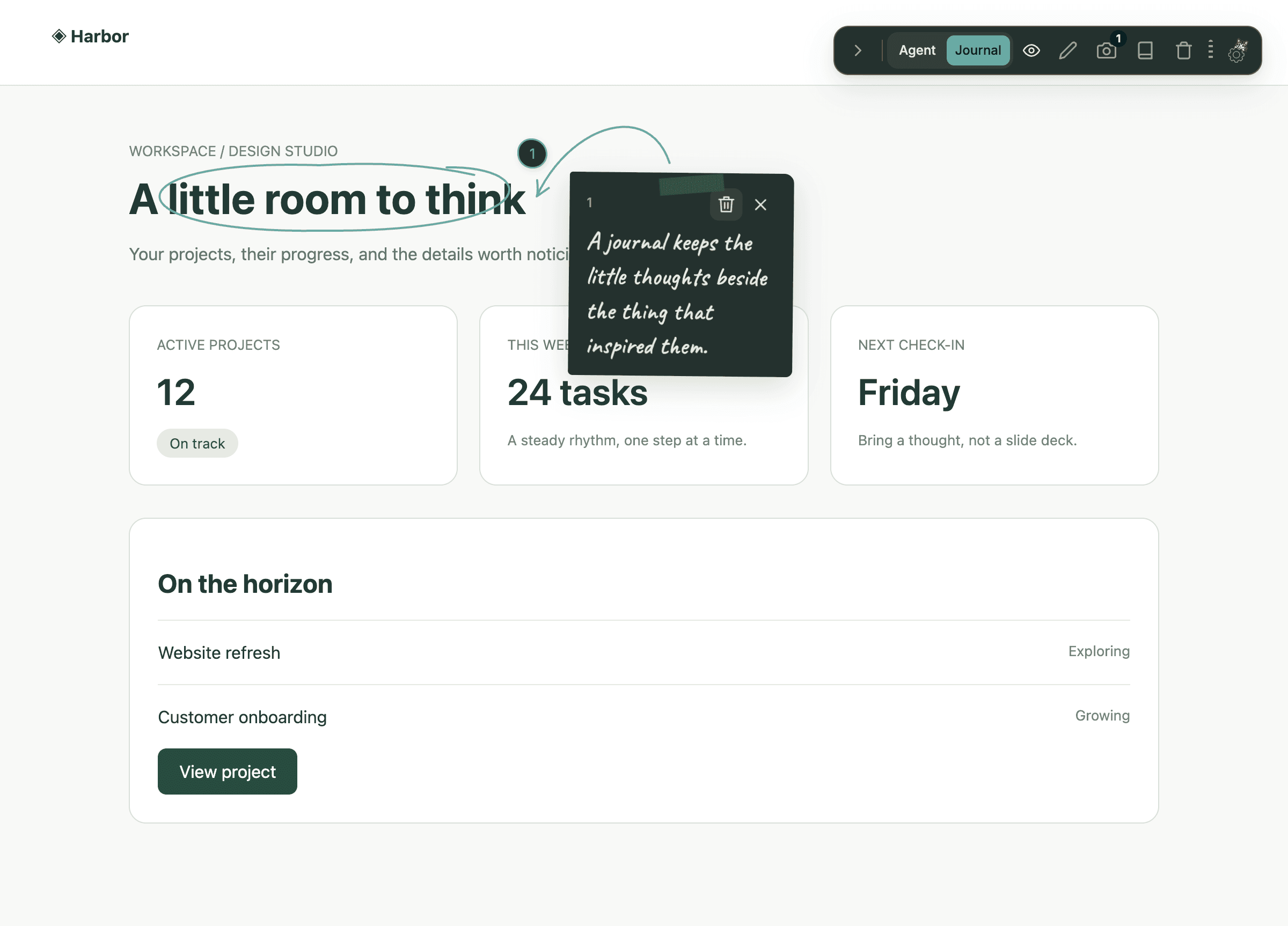
Keep personal thoughts on the page with taped notes, hand-drawn highlights, and local screenshot copying.
Field guide · 03
Availability
Install the Waypoint extension, enable it on your page, and choose Journal in the toolbar. No local server or coding agent is required.
Install and enable WaypointStart a local journal
Choose Journal in the toolbar’s Agent / Journal switch. The switch changes mode immediately without opening a menu. The separate Journals icon opens the picker and note list.
Choose the pen to begin. If this page has no journal, Waypoint creates one with a playful name. You can also create named journals yourself, with one active journal visible at a time.
Pin and write
Hover an element, then click or press Enter to select it. Left and right arrow keys adjust the selection scope. Selecting a clickable target blocks its normal page action.
Write on the taped note and save with the checkmark or Cmd/Ctrl+Enter. Plain Enter inside the editor inserts a new line. Saving a new note resumes selection so you can pin the next element immediately. Notes contain text only and stay outside the Agent Queue.
Edit and arrange the paper
Saved notes stay open together, with automatically drawn circles and curved arrows. Double-click the text to edit in place, or focus it and press Enter or Space.
Drag the tape or header to move a note; releasing regenerates its arrow. Manual placement lasts for the current page session. Use the eye control or a saved note’s close control to hide the entire journal without deleting it.
Match the page and recover targets
Journal matching keeps the origin, path, page parameter, and unknown query parameters. It sorts query keys and ignores sort, sortBy, sortOrder, utm_source, utm_medium, utm_campaign, utm_term, utm_content, gclid, and fbclid.
Ordinary section fragments are ignored; hash routes beginning with #/ or #!/ remain significant. Agent Annotation identity is unchanged. If a target disappears, its pin disappears while its note remains in the list for reattachment or deletion.
Copy the visible journal
The camera button copies the visible viewport as a PNG, including notes, circles, pins, and arrows. Waypoint briefly hides its toolbar, menus, and selection controls, then restores them. A short shutter sound follows a successful copy.
If capture access is missing, click the Waypoint extension icon once on this tab and retry. Clipboard permission errors appear in the Journal panel. Allow clipboard access and retry on a secure page such as HTTPS or localhost. Failed attempts preserve notes and restore controls.
This is a viewport capture, not a full-page export or hosted share link. Agent Copy remains text, and Clear on copy does not remove Journal notes.
Choose the right cleanup scope
A note’s trash icon deletes that note. The toolbar trash action clears notes from the active journal while retaining the journal. Deleting a journal removes the collection and its notes after confirmation.
Journal storage opens Data & Storage → Journal. Clear all Journal data confirms the journal and note counts, then deletes every journal and note on this device. Agent data stays untouched; its maintenance controls remain in the Agent tab.
What stays on this device
Journals live in Chrome’s local extension storage, without a server, account, or MCP synchronization. Removing extension storage or uninstalling can remove journals.
This version has no Journal import/export, cross-device sync, agent-authored notes, shared journals, media attachments, Markdown rendering, or guided walkthroughs. The screenshot is copied to your system clipboard for you to paste elsewhere.